GPCRMap Help
Welcome to GPCRMap! This page offers support for each facet of the GPCRMap webserver. Use the links below to jump to your topic of interest.
Contents
Getting Started with GPCRMap
In order to view and submit jobs to GPCRMap, you need to login to your account.
If you don't have an GPCRMap account yet, please sign up. When making your account you must provide your First Name, Short Name, Email Address, and a Password. Optionally, you can also provide your Affiliation and Organization. Click the Sign Up button when you are done.
If you are a returning user and have forgotten your password, click Forgot password? to reset your password.
GPCRMap is free for academic and governmental use. If you are unable to make an account with your e-mail, please contact us. If you wish to use GPCRMap for commercial purposes, contact Acpharis at https://acpharis.com.
Job Submission
Once you have logged in, you can submit jobs with GPCRMap. A user can submit up to 20 jobs in a 24 hour period.
To submit a job, navigate to the Submit page, shown here:
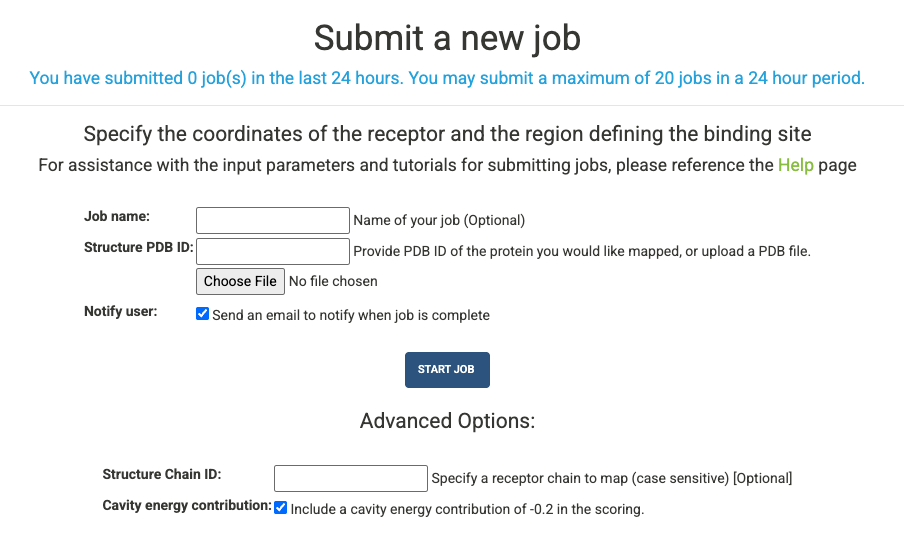
A number of arguments can be given when submitting your job. Each input parameter is outlined below:
- Job Name : (Optional) Provide a name for your job submission. If you do not provide a name it will automatically be created.
- Structure PDB ID : Select the structure by entering the four digit PDB ID of the GPCR you would like to map. All structures are downloaded from the RCSB. Alternatively, you can upload a PDB file for the structure you would like to map.
- Notify User : Check this box to receive an email from E-FTMap when your job is complete
Additional advanced options can also be provided:
- Structure Chain ID : Specify a specific chain in the structure you wish to map. If a multi-chain protein is selected, only this chain will be used as the structure in mapping calculations.
- Cavity Energy Contribution : The default option is to use a modified cavity energy contribution of -0.2 for the mapping calculations to prioritize extrahelical binding sites. If you wish to use the original cavity energy contribution of -0.8, uncheck this box.
Monitoring jobs
To check the status of your jobs, navigate to the My Jobs page, shown below:
All jobs are run in the order they are submitted. The runtime for your job is dependent on the availability of computational resources, the size of the receptor being mapped, and the number of probes you use in your mapping calculation.
A list of the jobs you submitted can be viewed in the "Jobs in progress" table. Jobs that have successfully finished running are listed in the "Completed jobs" table. Each job will have one of the following statuses:
- PDB Download : The structure coordinates are being downloaded the RCSB PDB.
- PDB Modification : The structure PDB file is being modified so that it can be used for mapping. Modifications include the removal of all nonstandard residues, and the selection of structure chains specified by the user.
- Gen Job Pkg : All input files are being processed for submission to Boston University's Shared Computing Cluster (SCC)
- Scc Submit : The job is being submitted to SCC
- Scc Running : The job has successfully been submitted to the SCC and the webserver is waiting to receive results.
- Scc Results : Results from the mapping calculation are being unpacked
- Complete : The job has been completed, and results can now be viewed and downloaded.
- Error : An error has occurred with your job, and it will no longer be run.
- Deleted : The job has been deleted. Jobs are deleted automatically after 30 days, or manually by the user.
Viewing job results
By clicking the name of one of your jobs on the My Jobs page, you can access the results page for your job. Here you can view a a detailed list describing the status of the job, the type of input used for the receptor coordinates, the type of input used to define the binding site box, the chains used for mapping, the date and time when the job was created, and the date and time when the job was last modified.
Users can restart or delete a job at any time using the Delete Job or Restart Job buttons located in the top right of the page.
Prior to the completion of a job, the NGL Molecular Viewer can be used to view the structure of the input file that is being mapped. When a job is completed, GPCRMap results can be viewed in the browser using the GPCRMap Results button.
A screenshot of the results page can be seen below. When viewing results with the GPCRMap Results button, a legend is displayed to the right of the viewer, showing the colors of each atomic consensus cluster, the rank of each atomic consensus cluster, and the size (number of probe atoms) in each atomic consensus cluster.
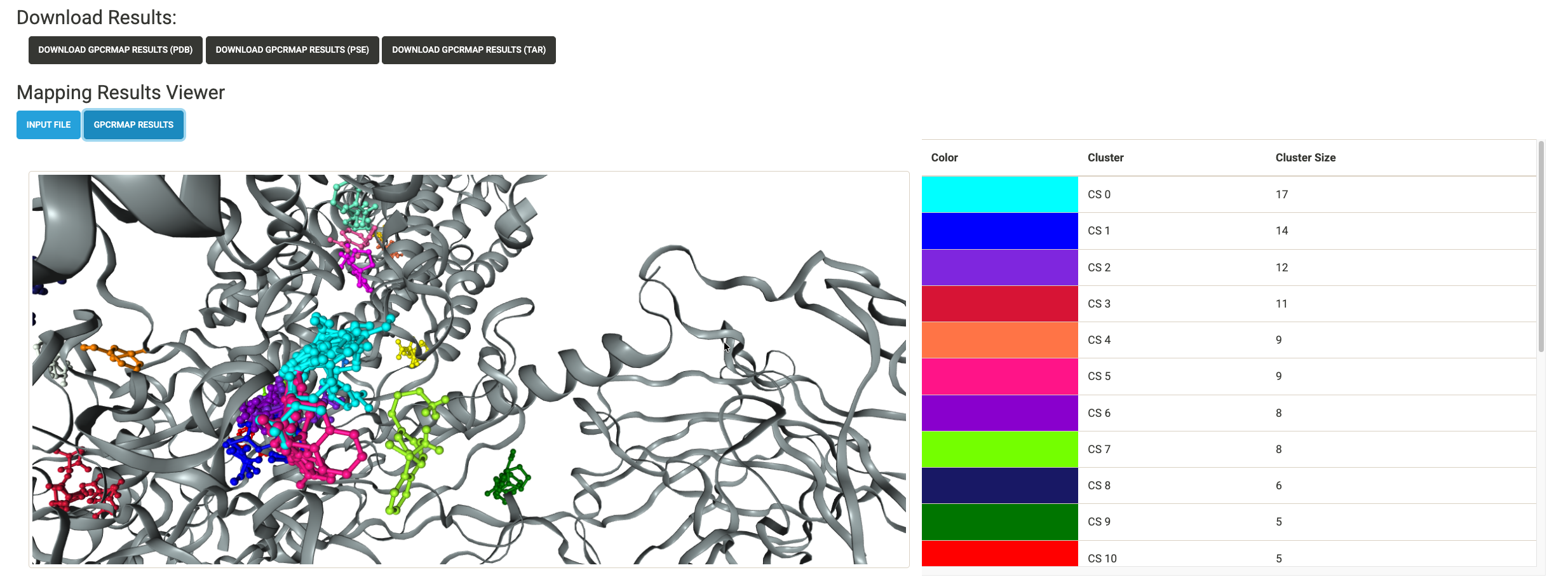
When a job is completed, the following download buttons are displayed on the results page:
- Download GPCRMap Results (pdb) : Download a PDB file containing the coordinates of the structure and atomic consensus clusters found by GPCRMap. Each atomic consensus cluster is separated by a HEADER entry in the PDB file.
- Download GPCRMap Results (pse) : Download a Pymol Session (.pse) file which displays the results from the GPCRMap calculation. This file has been formatted to allow for an easy visualization of the mapping results.
-
Download GPCRMap Results (tar) : A .tar file containing the PDB and SDF result files
from the mapping calculation. The contents of this file include:
- rec.pdb : The structure that was mapped, in PDB format
- rec_atlas.pdb : Coordinates of the structure and atomic consensus clusters generated by GPCRMap calculations in PDB format
- rec_atlas_protein.pdb : Coordinates of the protein used in the mapping calculation in PDB format
- rec_atlas_consensus.RANK.SIZE.sdf : One SDF file per atomic consensus cluster, containing the probe atoms in that cluster. The file name encodes the cluster's rank (RANK) and its size, i.e. the number of probe atoms it contains (SIZE)